


Alex Richardson
Crosshair
Copy


You can set up a CS2 crosshair in just a few seconds - simply open the console and enter the command below. This method is widely used by pro players because it allows you to quickly apply crosshair settings without navigating menus. To apply Machine crosshair in CS2 via console, copy the ready-to-use crosshair code and paste it into the console, then press "ENTER".
This method works on all devices - PC, laptops, and even low-end systems where quick settings changes matter. If you were looking for how to paste a crosshair code in CS2, how to copy a pro player crosshair, or how to create a medium crosshair in CS2, using the console is the fastest and easiest solution.
Open the Settings menu → go to the Game tab → find the Crosshair section → click the Share or Import button. This method is perfect if you want to apply a CS2 crosshair without using console commands.
Paste the crosshair code CSGO-UOeOT-BxQaq-DZYxG-mObvY-OnMHA into the field and click Import. This will instantly apply the same crosshair used by Machine - no manual setup required.
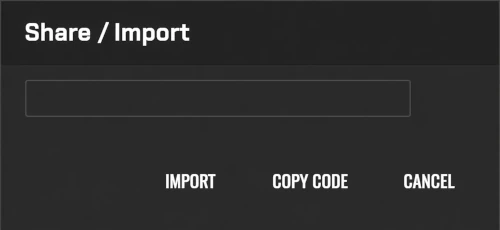
Done - Machine crosshair April 22, 2026 is now active on your CS2 profile.
 Vitality
  FURIA
FURIA  Natus Vincere
  Falcons
  PARIVISION
  MOUZ
MOUZ  The MongolZ
  Spirit
  Astralis
  FaZe
FaZe  G2
G2  FUT
FUT  Legacy
  3DMAX
3DMAX  Aurora
  HEROIC
  9z
9z  Liquid
  paiN
paiN  B8
B8  TYLOO
TYLOO  GamerLegion
  Monte
Monte  Ninjas in Pyjamas
  NRG
NRG  Gentle Mates
  SINNERS
  BetBoom
  HOTU
HOTU  Passion UA
  BIG
BIG  Alliance
  Imperial
  M80
M80  100 Thieves
  Sharks
  EYEBALLERS
  BC.Game
  Lynn Vision
  OG
OG  illwill
  MIBR
MIBR  ECSTATIC
  K27
K27  fnatic
  Tricked
  9INE
9INE  BESTIA
  Clutchain
  FOKUS
FOKUS  Voca
Voca  Betclic
  Gaimin Gladiators
  Inner Circle
  FlyQuest
  Famalicão
  Marsborne
  Nemiga
  Acend
Acend  RED Canids
  Eternal Fire
  ShindeN
  ODDIK
ODDIK  WW Team
  BET-M
BET-M  SPARTA
  Nemesis
  Johnny Speeds
  magic
magic  The Huns
  NEW VISION
  JiJieHao
  THUNDER dOWNUNDER
  AM Gaming
  Galorys
  Nuclear TigeRES
  SemperFi
  Wildcard
  Fluxo
Fluxo  FAVBET
  Phantom
  1WIN
1WIN  Sashi
Sashi  MOUZ NXT
  CYBERSHOKE
  MANA
MANA  LAG
LAG  AaB Esport
  Metizport
  Chinggis Warriors
  ARCRED